Wasif Paracha case study
An Excel system for tracking brokerage deals, payments and commission
I built this custom Excel system for Wasif Paracha, a dry-fruit and spice broker in Raja Bazaar, Rawalpindi. It records each deal, calculates commission, tracks whether sellers have been paid and buyers have received their goods, highlights overdue payments and shows monthly and yearly results.
The challenge
Important deal information was spread across notebooks and WhatsApp.
Wasif recorded deals in notebooks and WhatsApp conversations. He could keep details for individual deals, but he had no single place to see completed work, pending payments and unpaid commission.
Unpaid commission was easy to miss
There was no single report showing which commission had been received and which amounts were still unpaid.
Every deal had to be calculated by hand
Wasif calculated the deal value and commission separately, which took more time and made mistakes more likely.
Payments and goods were hard to follow
Wasif needed a clear way to check whether the seller had been paid and the buyer had received the goods.
There was no monthly or yearly overview
He could not quickly see commission by month or year, unpaid amounts or which buyers brought the most business.
The solution
I put the full deal process into one workbook.
I built an Excel workbook with built-in automation. You enter each deal once, and Excel calculates the value and commission, tracks the payment status and updates the reports when you click Refresh.
The seller, buyer, payment status, due date and commission stay in the same record. You can review the full deal without checking separate notebooks or WhatsApp messages.
Enter the deal once
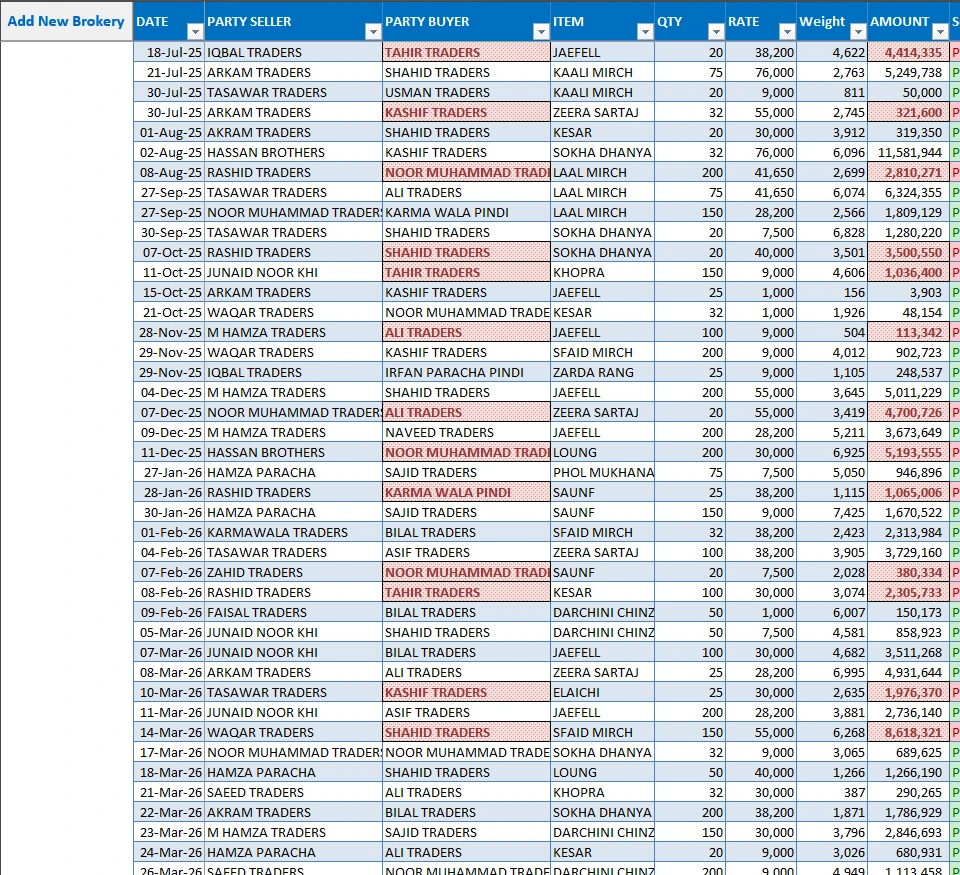
You record the seller, buyer, product, quantity, rate and actual weight in one row.
Excel calculates the deal value and commission
The market rate is based on 40 kilograms, so Excel first works out the value for the actual weight you entered.
Follow payment, goods and commission
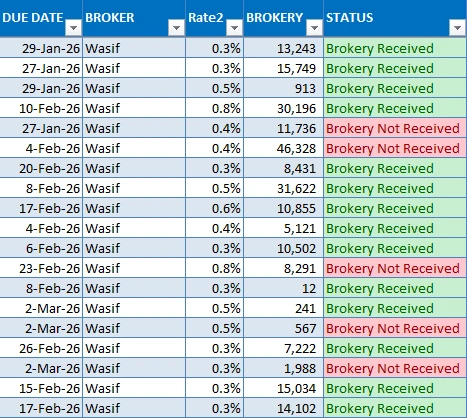
You can see whether the seller has been paid, the buyer has received the goods and the commission has been collected.
The workflow
Four steps from a new deal to commission added as income.
You enter the deal once. Excel then tracks payment and goods delivery, calculates the deal value and commission, and adds received commission to the income records.
Enter the deal
Add the seller, buyer, product, quantity, rate, actual weight, due date and commission rate.
Check what is still pending
See whether the seller has been paid, the buyer has received the goods and the commission has been collected.
Calculate the deal
Excel works out the deal value and applies the commission rate automatically.
Add the income and refresh
When commission is received, Excel adds it to your income records. Click the Refresh button to update the reports.
Dashboard walkthrough
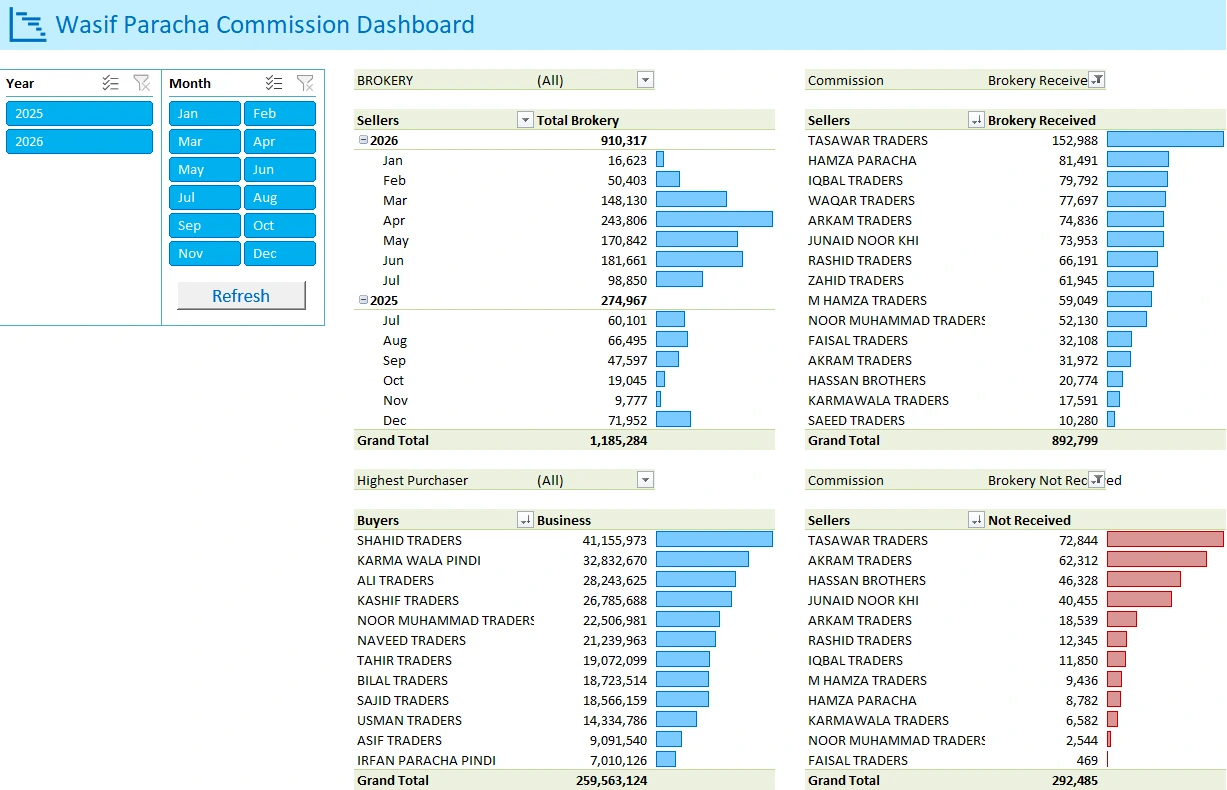
See how much commission was earned, received and still unpaid.
Year and Month filters let you choose the time you want to review. The dashboard then shows total commission, received commission, unpaid commission and the buyers who brought the most business.
I used fictional sellers, buyers, dates and amounts in this public case study. Open full dashboard
Dashboard close-ups
The focused views below make each part of the dashboard easier to read.
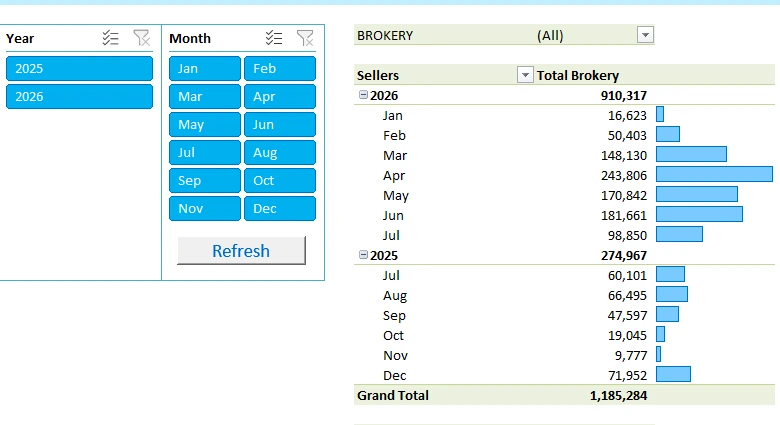
Use the Year and Month filters to choose the time you want to review. The chart shows how much commission was earned over time.
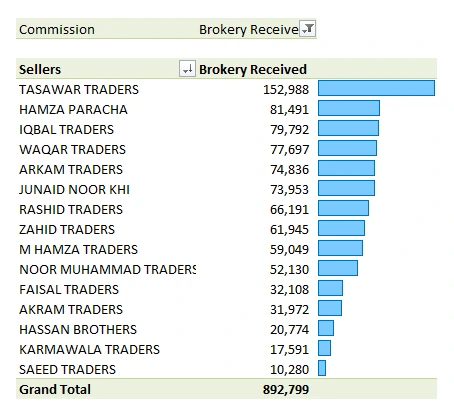
See the commission received from each seller and quickly spot the highest amounts.
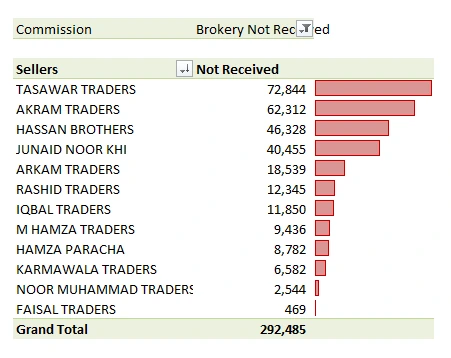
Check all unpaid commission in one place instead of searching through notebooks and WhatsApp messages.
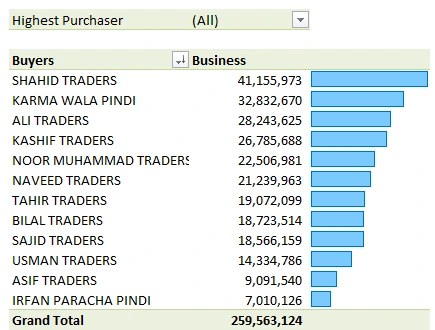
See which buyers brought the most business based on their total purchase value.
User experience
See important follow-ups without checking every deal.
You mainly work in the Brokerage sheet. Dropdown lists, automatic calculations and colour-coded statuses help you keep the records clear and consistent.


The warning appears when payment is overdue and clears after payment is received.
In the first image, the due date has passed while the seller’s status is still Payment Not Received, so Excel highlights the deal in red. In the second image, the status has changed to Payment Received, so the warning disappears and the row returns to its normal colour.
Problem solving
Add received commission to your income automatically.
Without this automation, you would mark the commission as received in the Brokerage sheet and then enter the same amount again in the Transactions sheet. That repeats the work and can create missing or duplicate entries.
When you mark commission as received, Excel adds it to the Transactions sheet. If you change the seller name or commission amount, Excel updates the matching income entry. If you change the status back to Commission Not Received, Excel asks before removing that entry.
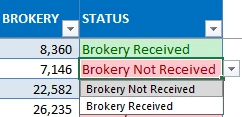
Swipe horizontally to inspect the full screenshot.

Excel adds the date, seller, description, commission amount and income category to the Transactions sheet.
Swipe horizontally to read the confirmation message.
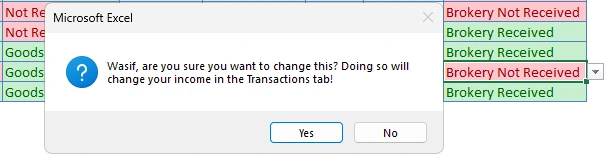
If you change the status back to Commission Not Received, Excel asks before removing the matching income entry.
Review commission with your other income and expenses
After Excel adds the commission to the Transactions sheet, you can review it with your other income, expenses and net savings in the Income & Expense Dashboard.
Change the deal once
If you change the seller name or commission amount in the Brokerage sheet, Excel updates the matching income entry automatically.
Behind the workbook
Excel handles the work behind the scenes.
You enter each deal once. Excel then calculates the deal value and commission, keeps names and statuses consistent, highlights overdue payments, adds received commission to your income records and updates the reports when you click Refresh.
You need Microsoft Excel 2021 or Microsoft 365 on a desktop, with macros enabled, to use all workbook features.
The outcome
A clearer way to manage deals, payments and commission.
The workbook brings each deal, seller payment, buyer delivery and commission record into one place.
Unpaid commission stays visible
Wasif can see unpaid commission in one report instead of searching through notes and messages.
Calculations are automatic
Excel works out the deal value and commission from the rate, actual weight and commission percentage.
Late payments stand out
Overdue seller payments turn red until the payment status is updated.
No need to enter the income twice
When commission is received, Excel creates the matching income entry automatically.
“I was not expecting it to be this good. I liked it a lot.”Wasif Paracha
Adaptable by design
I built it for Wasif, but I can adapt it to other businesses.
I built this workbook around Wasif’s dry-fruit and spice brokerage process. I can adapt the same structure for other brokers, agents, distributors and businesses that need to track deals, payments and commission.
I can adjust the commission rates, payment stages, products, users and reports to match the way your business works.
Custom Excel Systems
Need a better way to track deals, payments or commission?
Tell me how you currently manage your work. I can build an Excel system that keeps your deals, payments and commission in one place and gives you clear reports.
Share your spreadsheet, notebook or current process to get started.
