From invoice entry to payment follow-up in one Excel system
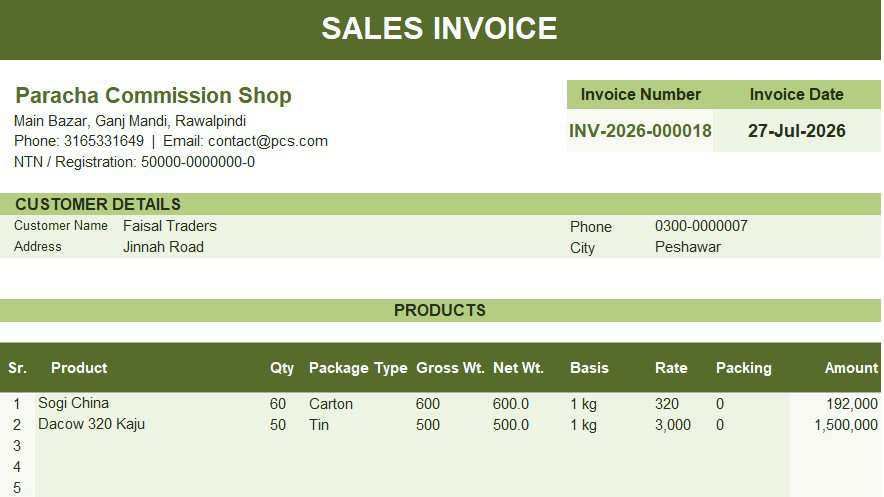
When invoices, customer details and payment updates sit in different files, simple questions can take too long to answer. Which invoices remain unpaid? Which payments are due soon? How much has been collected this month? This concept project shows how those records can work together in one Excel system. You can follow each sale from invoice entry to payment review and management reporting.
Explore the public preview
Download a safe preview of the invoice and receivables workbook.
Preview only: Do not use this workbook for live invoicing, bookkeeping or financial records.
“Receivables” means money that customers still owe on unpaid invoices. You can review the workbook layout, sample records and reports. The public file does not contain macros. Macros are small programs that automate tasks inside Excel. This means actions such as saving invoices, reopening records, refreshing reports and exporting PDFs are not available in the preview. The preview uses the .xlsx format because it cannot store VBA macro code. Microsoft explains that .xlsx files cannot contain VBA macros, while .xlsm files can. Read Microsoft’s Excel file-format guidance. This is a Finenza concept project. It uses fictional business, customer and transaction data. Neither the workbook nor the browser demo contains client information.
The reporting problem
Creating an invoice is only the first step
An invoice tells a customer what they need to pay. It does not give you a full view of unpaid balances or upcoming due dates.
When records are kept separately, you may enter the same information more than once. You may also need to search through old files before preparing a report.
The project connects the main parts of the process:
Customer and product records → Invoice creation → Invoice database → Payment follow-up → Management dashboard
Each step uses information saved during the previous step.
Invoice creation
Enter the sale in one place
The invoice screen keeps customer details, products, quantities, rates, charges and payment information together.
The system creates a unique invoice number. It calculates the subtotal, extra charges, final total and remaining balance.
If the customer has not paid in full, you can add a due date. You can also add more product rows, print the invoice or export it as a PDF.
Finding an invoice
Reopen a record without searching through files
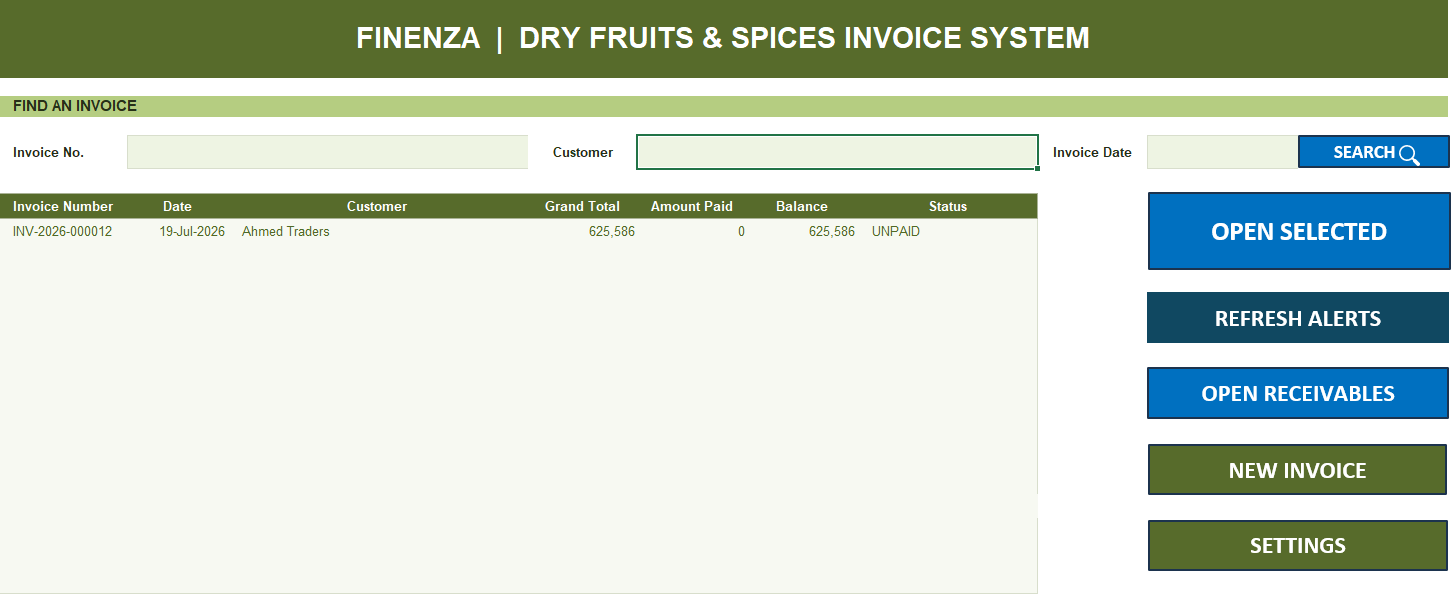
You can search with the final digits of an invoice number. If you do not know the number, you can search by customer or invoice date. The customer list becomes shorter as you type. Matching invoices appear in the results. You can reopen one to review it, correct it, print it or record a payment.
Payment follow-up
See which invoices need attention
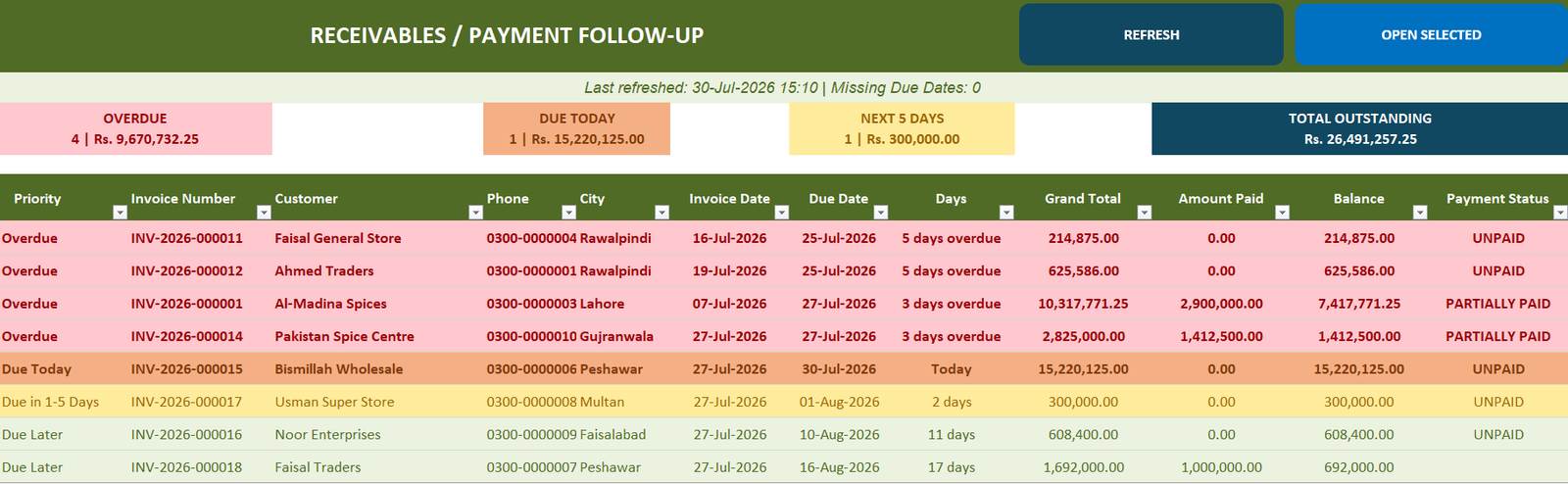
The receivables register groups unpaid invoices by due date.
Overdue invoices appear first. They are followed by invoices due today, due within five days and due later.
You can see the customer, invoice date, due date and balance in the same row.
Select an invoice to reopen it from the register. You can then review its details or update the payment.
The records behind each invoice
Reuse information and keep the details together
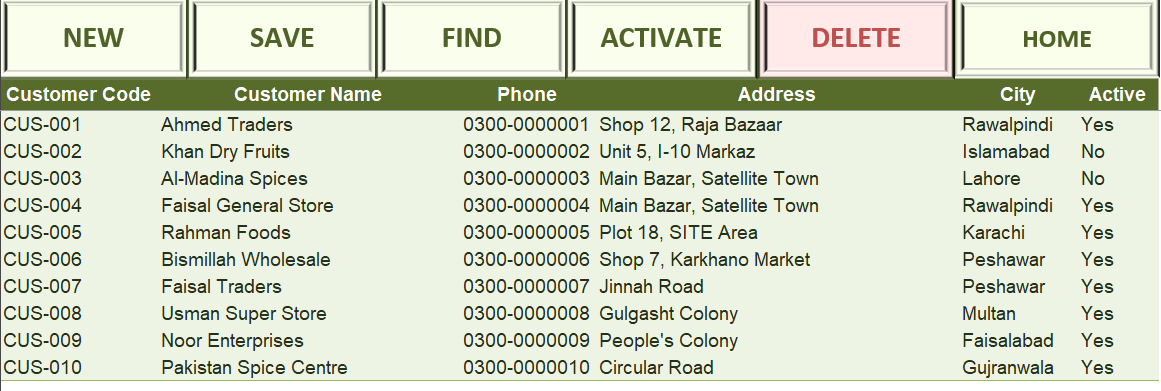
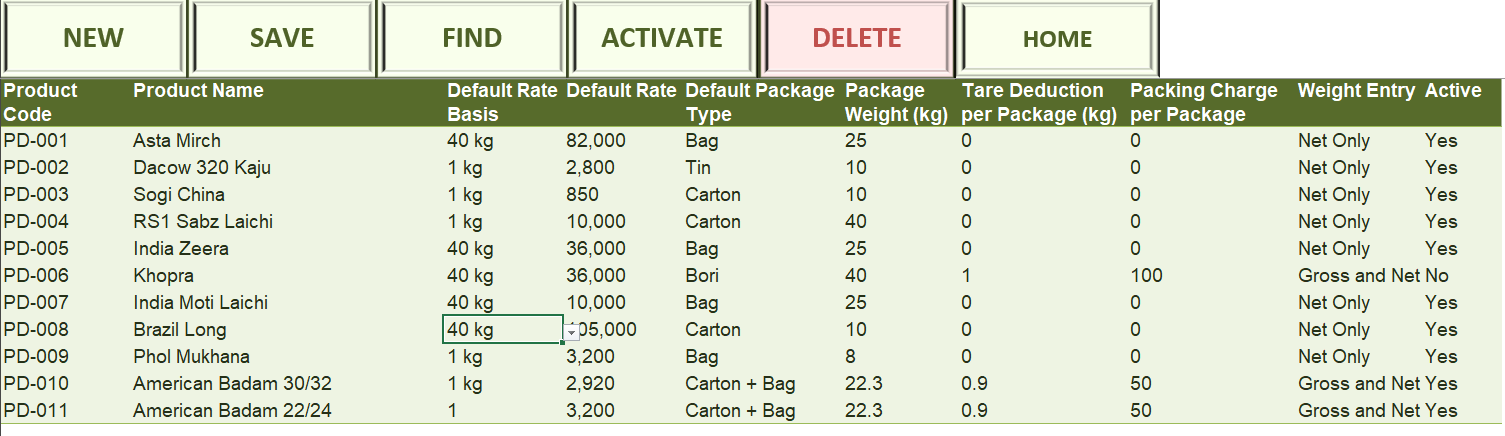
The customer register stores names, phone numbers, addresses and cities.
The product register stores product names, package types, rates, weights and packing charges.
You can reuse this information when creating an invoice instead of entering it again. The system creates and protects the customer and product codes.
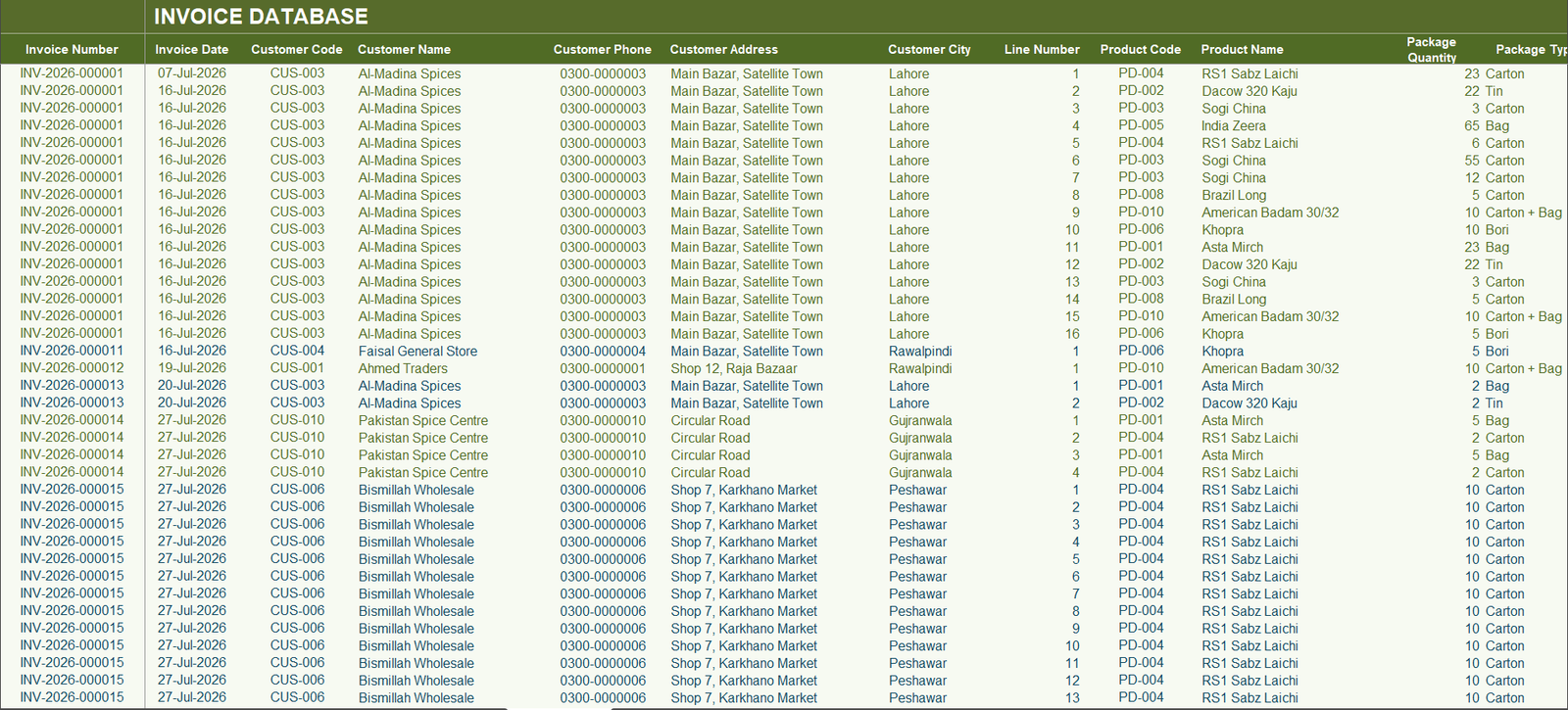
Each product sold is also stored as a separate database row. This is called a “line-level record.” It means every product line can be reviewed on its own.
This makes it possible to study sales by product while still reviewing totals by invoice or customer.
Management dashboard
See the main results in one place
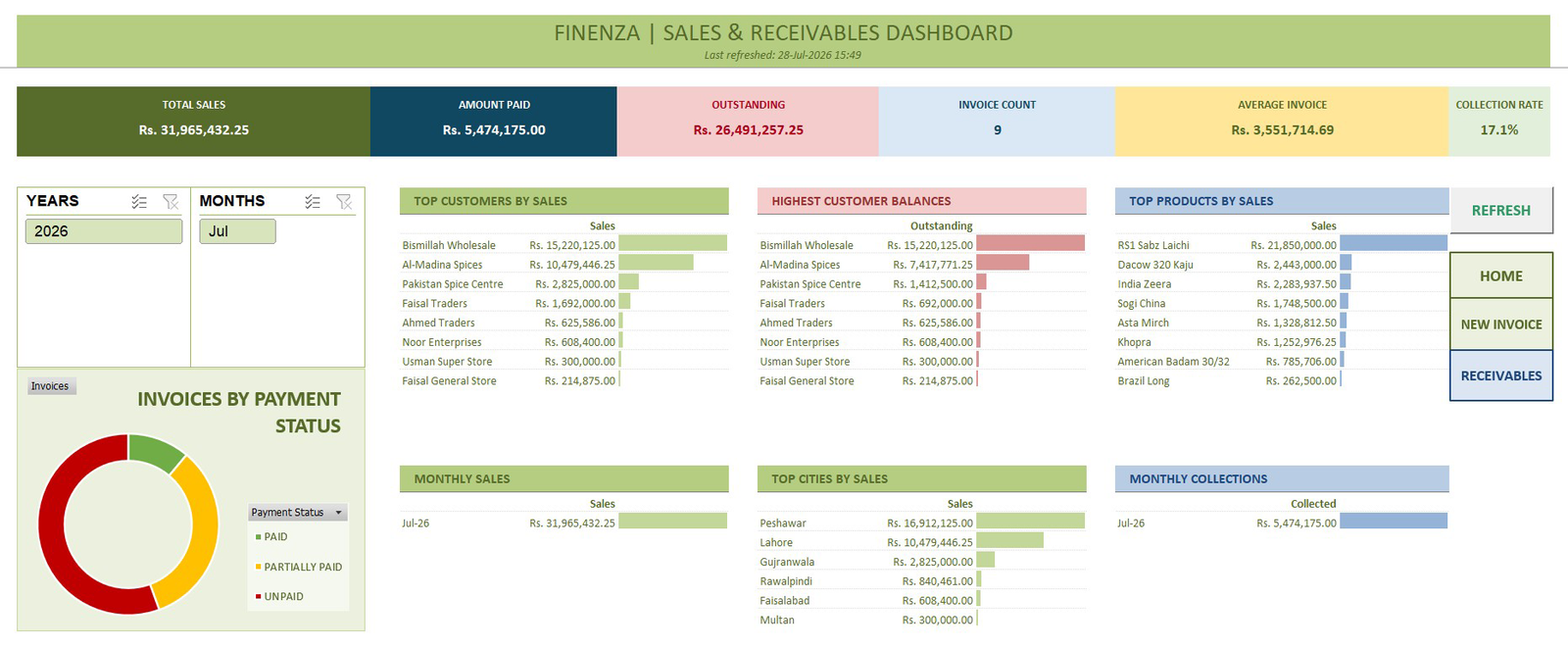
A management dashboard is a summary screen used to review important business results.
You can use this dashboard to review sales, payments and unpaid balances. You can also compare customers, products, cities and reporting periods.
It shows total sales, money collected, outstanding balances, invoice count and average invoice value. Monthly results and payment status are also included.
Year and month controls let you change the reporting period without editing formulas.
Workbook controls
Reduce common recording mistakes
The original workbook uses several controls to keep records consistent:
- It checks an invoice before saving it.
- It prevents the same invoice from being saved twice.
- It decides whether Save should create a new invoice or update an existing one.
- It protects formulas, report areas and system-generated codes.
These controls support the process. They do not replace an accounting system or an independent review of the records.
How this relates to accounting firms
Adapt the same approach for client reporting
Accounting and bookkeeping firms may receive different files from different clients.
A consistent process can make those records easier to prepare and review. It can also support regular payment reports and management reporting.
The exact design would depend on the client’s accounting system, data and reporting needs.
For example, a similar project could use information exported from Xero or QuickBooks instead of invoices created inside Excel.
The outcome
A clearer path from sale to payment review
The project shows how the same invoice records can support billing, payment follow-up and management reporting.
It creates a clearer process from entering a sale to reviewing what remains unpaid.
Because this is a concept project, no time-saving percentage or financial improvement is claimed.
Client reporting automation
Need a more consistent reporting process for your firm or clients?
Share the report, spreadsheet or client process you want to improve.
We can start with one focused reporting problem and decide whether a small paid project is the right next step.